Linked Terminals
@mention an AI terminal you already have open and your prompt is delivered into that live agent — with a reply channel back to you.
The simplest way to get two agents working together is to talk to one from inside the other. In 1DevTool that means linking terminals: you mention a terminal that is already open, and your prompt is delivered into that live agent instead of spawning a new one.
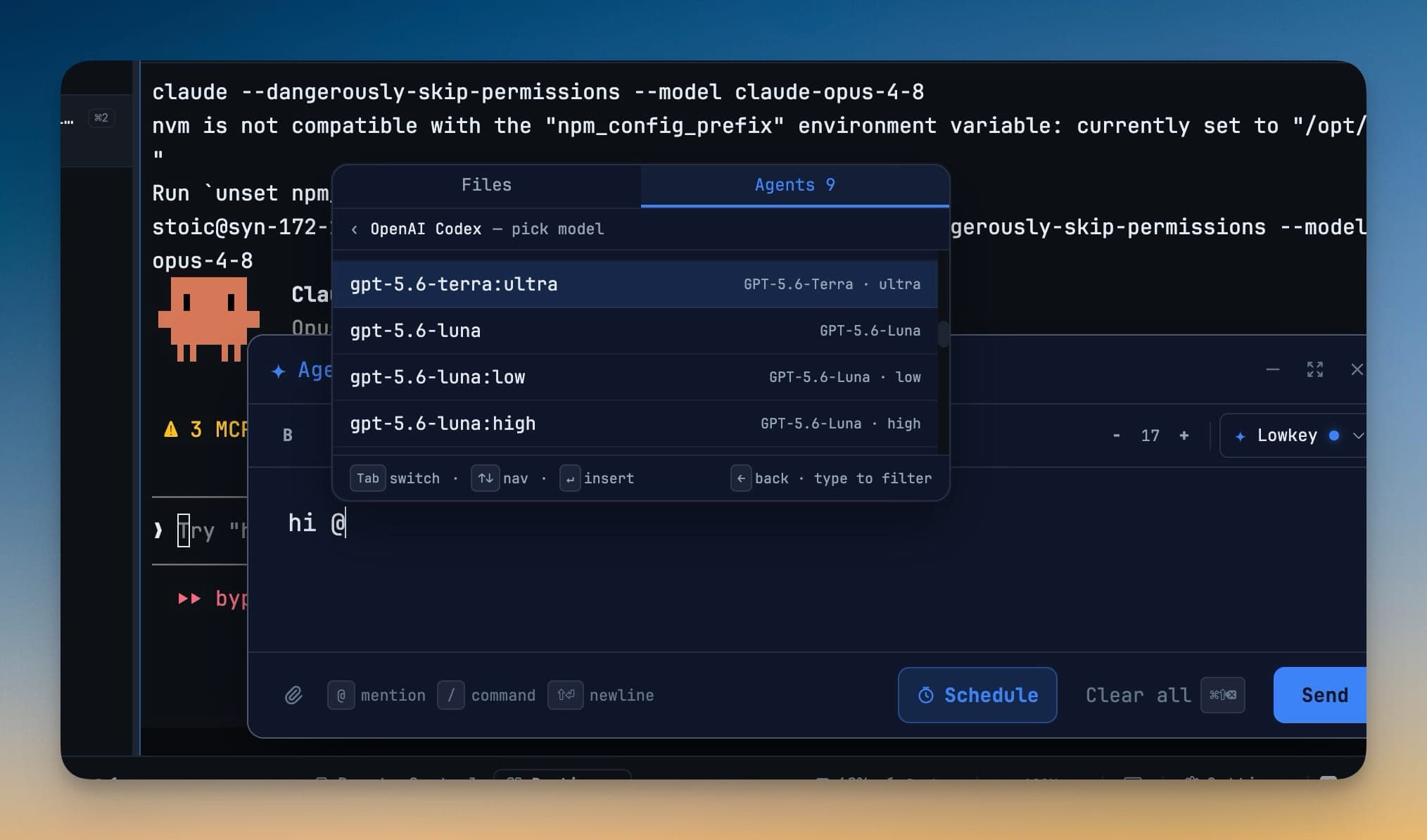
Mention a terminal
Open Agent Input and type @. The mention picker has a Terminals tab listing every open AI terminal, grouped by project and searchable by terminal or project name.
Pick one, write your instruction, and send. The prompt is delivered into that agent's composer and submitted.
Links can cross projects. A terminal working in acme-api can hand work to an agent in acme-storefront — useful when a change spans a backend and a frontend and you want each agent to stay in its own repository.
Get the answer back
Mention this terminal in the same message and you open a reply channel back to yourself. The answer then arrives in your terminal instead of being printed in the peer's, which is what you almost always want.
Every delivered message carries who sent it and the exact command to answer with, so the receiving agent never has to guess how to reply. A reply marks the original request answered — and only after the reply itself is proven delivered, so a queued, cancelled, or failed reply leaves the original visibly outstanding.
Delivered, or delivery-unconfirmed
1DevTool will not tell you a message landed unless it can prove it.
- Delivered — the receiving agent demonstrably accepted that exact message: it appears as a real message in its session, or its composer visibly held your text and then cleared.
- Delivery-unconfirmed — the keystrokes reached the terminal but acceptance could not be proven. This is deliberately not retried; pressing Enter again could run the same task twice, so 1DevTool leaves the decision to you.
- Queued — the receiving agent's composer could not be proven empty yet. A queued delivery retries on its own every 15 seconds for up to 10 minutes and tells you what it is waiting for. A target with no readiness contract, or a link set to strict confirmation, asks for your Submit now or Cancel instead.
The same reason text appears everywhere the message does: Mission Control, the Team Map, AI settings, and the phone.
Approve a delivery before it lands
A link can be set to confirm mode, where a message waits for your say-so. Those queued deliveries show up on the receiving agent's card in Mission Control and the Team Map with Submit and Reject buttons, so a confirm-mode link never means hunting through a list to find the message.
Agents' link requests approve themselves
Auto-approve agent link requests is on by default. When an agent asks to link to another terminal to send, ask or share an artifact, the link goes live straight away with auto delivery, so a worker can report back to its lead without anyone clicking Approve link. A request for read access still waits for your review, and Activity says so on the row: Auto-approve is on — this one waits because it asks for read access.
Turning the switch on approves the requests that were only waiting for it. A request whose terminals have changed since it was made is cancelled instead. Existing links keep their own delivery setting, and switching a link to Auto delivery releases the messages already queued on it, so you don't need Submit now for each one.
The switch is in Settings → AI → Orchestration, which is one page with five sections: Delegation, Models, Skill install, Links & approvals and Diagnosis & Autopilot. Its Pending for you list shows the same rows as Activity → Needs you.
Terminals arrange themselves
A project running live orchestration switches to the 2×2 grid so you can watch the participants work. Changing the layout yourself always wins, and the layout it captured is restored once the project goes quiet. The behaviour is a real setting under Settings → AI, not a hidden preference.
When a terminal restarts
Links whose terminal was closed or restarted become quarantined. Mission Control lists them with Relink and Clear all, and Resume team reconnects a whole project's agents in one action — each terminal gets a single catch-up notice instead of one per link. Links whose terminals are gone for good are cleaned up rather than piling up in the counter forever.
From the command line
The agent CLI covers the same ground: whoami to see which terminal you are, link send to deliver a message (with replies), and link status for a board summarizing everything you sent and everything waiting on you.
Related
- Mission Control — counters, nudges, and relinking
- Read Permissions — letting agents read each other's work
- Agent Input — where the
@picker lives