File Explorer & Editor
Browse and edit in one workspace — resizable, collapsible, with coloured file icons and a standalone explorer when you want one.
The File Tree and the editor sit beside each other in a single workspace tab across every built-in layout, so opening a file does not send you between two separate panels.
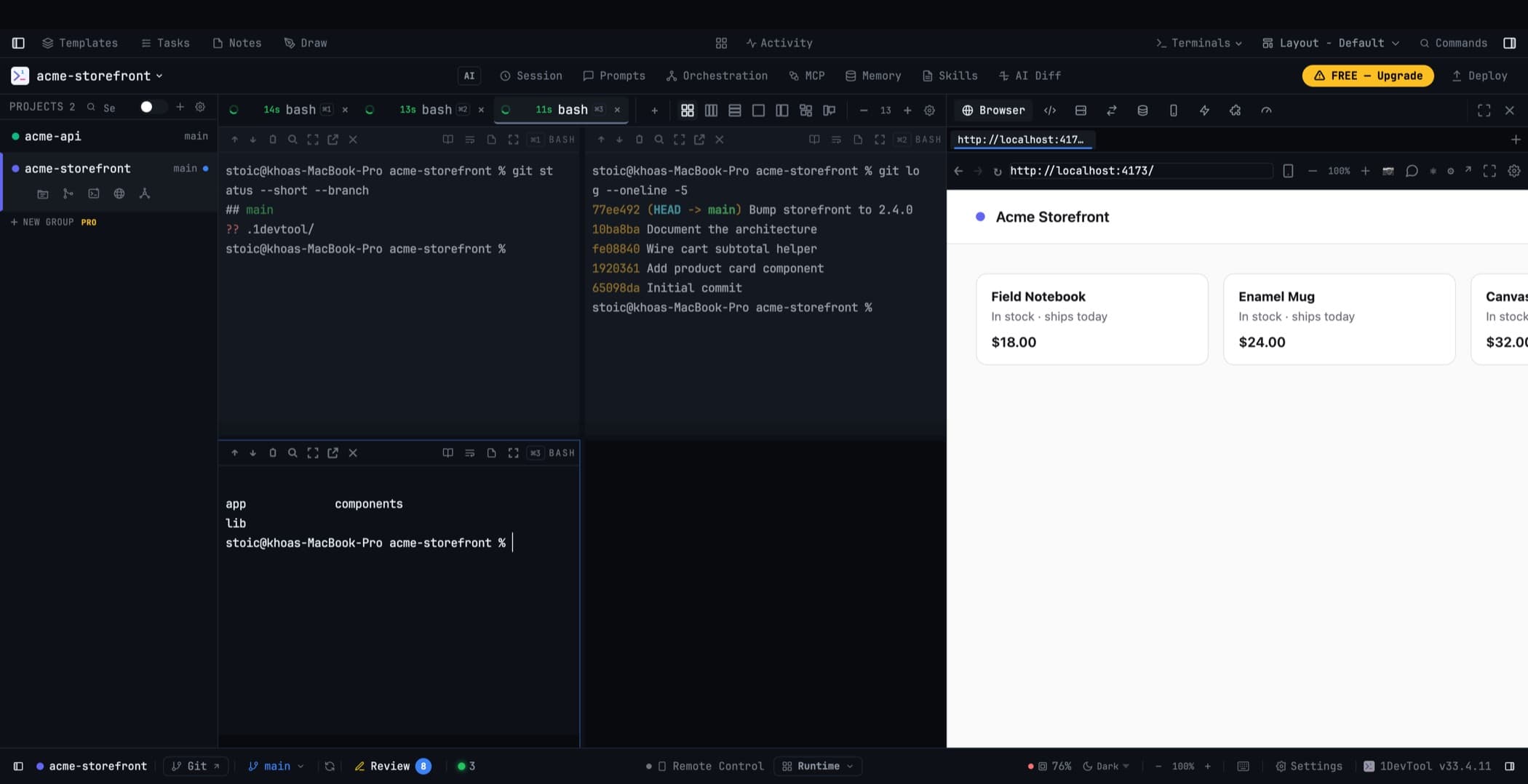
Sizing the tree
Drag the divider inside the workspace to set the tree's width; the editor keeps painting behind it while you drag. Double-click the divider to snap back to the default.
The width you choose is remembered, and the editor always keeps enough room even when the workspace is sitting in a narrow sidebar.
Collapsing it
Hide the tree from the workspace toolbar or from the Files header. A slim rail stays behind to bring it back in one click, and a collapsed tree stops watching the repository until you open it again.
The sidebar's File Explorer can also collapse to a single row. The project list above it keeps the height you dragged it to.
A standalone File Explorer
Some people want the tree as its own panel rather than embedded next to the editor. Place a File Explorer panel anywhere in your layout — left, center, or right, from Settings → Layout — and the editor drops its embedded tree automatically.
Remove the standalone panel and the editor takes its tree back. The two can never both disappear.
The Classic and Horizon layouts are built around exactly this arrangement.
The standalone explorer keeps its own width and its own collapse state, and it follows you across projects like every other panel.
Coloured file icons
The tree uses coloured icons for common languages, frameworks, project files, databases, archives, and specialised folders — including distinct open-folder variants — so a directory is scannable by shape and colour rather than by reading every name.
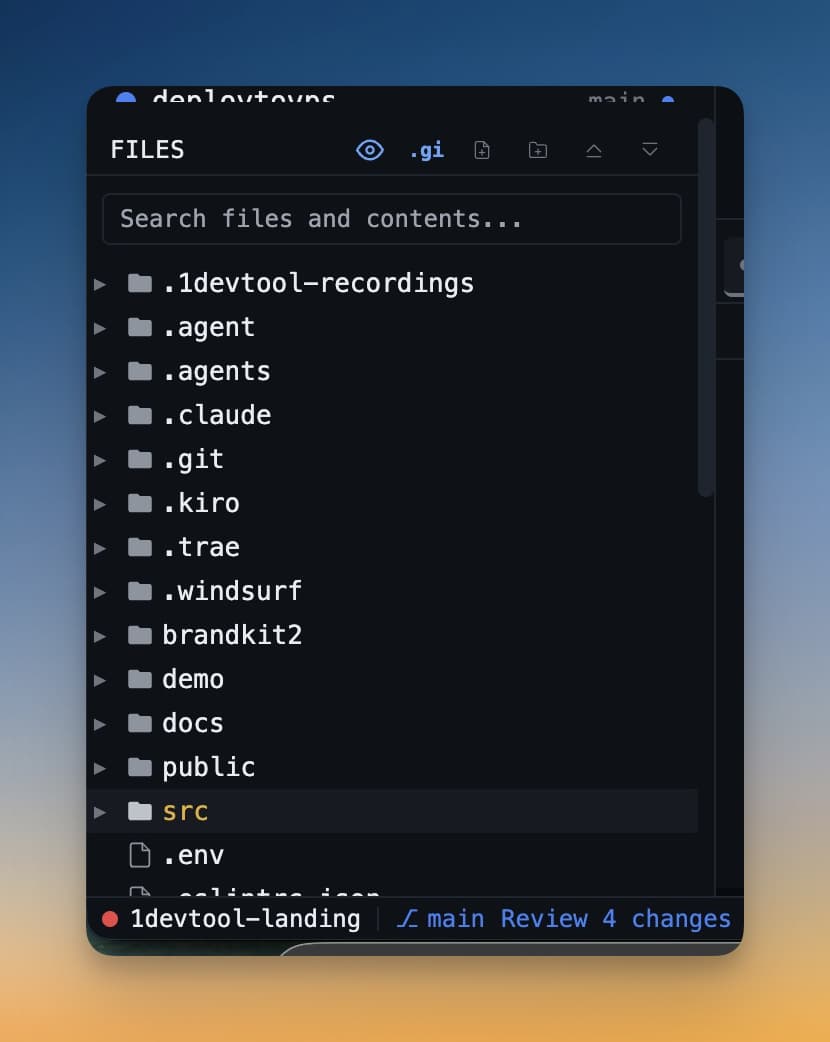
Search
Search inside the tree with include and exclude patterns, case sensitivity, whole-word, and regex toggles.
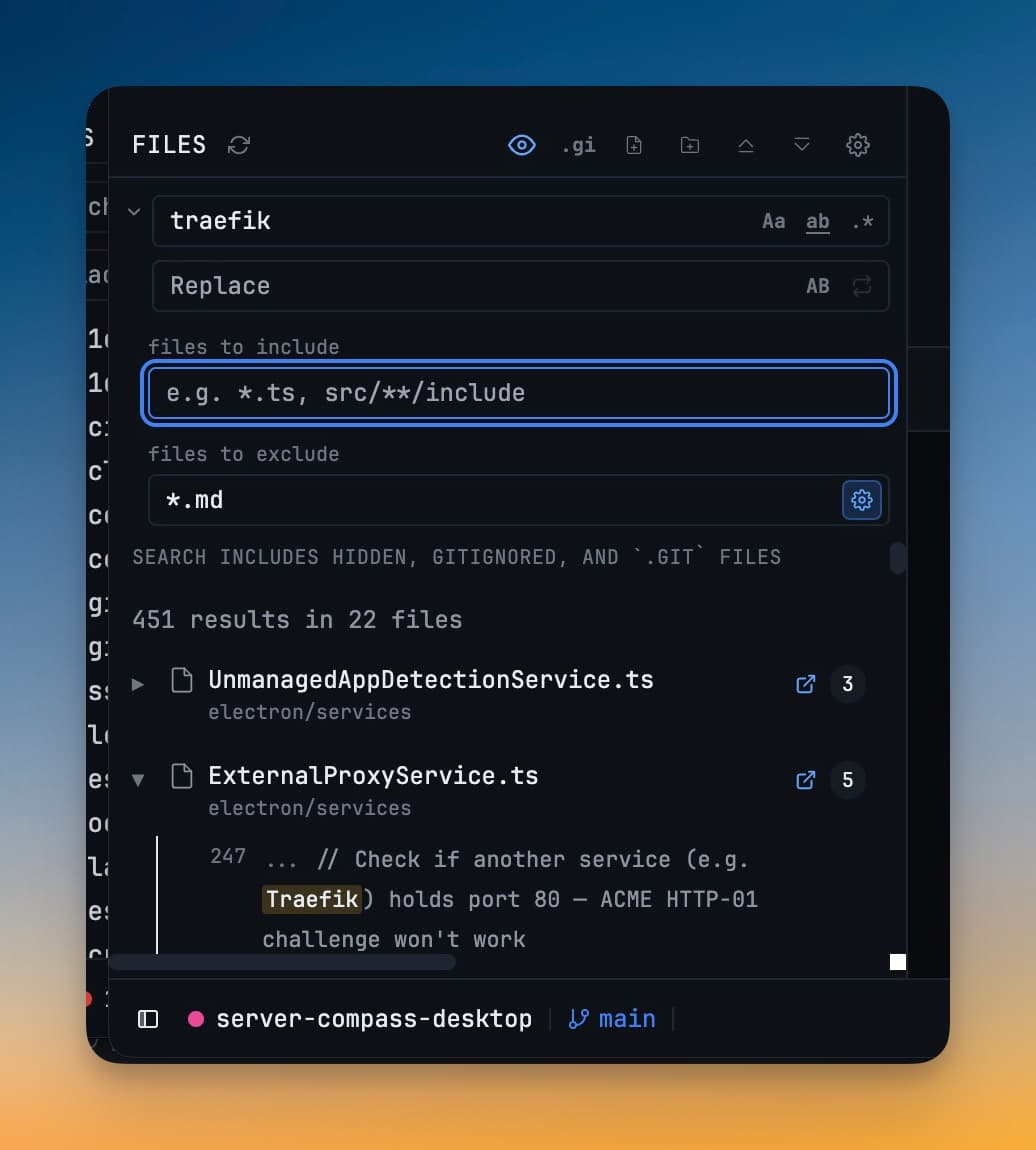
Expansion state that survives
Expanded folders are remembered when you switch projects, switch worktree roots, or reopen the app — including rapid switches right after expanding or collapsing something. Files opened during the current session still reveal themselves normally.
Watching for external changes
Files created or changed by another editor, an AI agent, or a build appear immediately. On Windows this is native file watching, which also stops the app burning CPU cores on large projects; network and SSH folders keep polling, which is the correct behaviour there.
Performance
A hidden File Tree and Editor pause their refresh work and catch up once when shown, so a workspace you are not looking at costs nothing.
Paste a path into a terminal
Telling an agent about a file is a path-shaped errand: find it, copy the path, click into the right terminal, paste. Every step is trivial, and the last one has a real failure mode — pasting into the terminal next to the one you meant.
Right-click any file or folder and choose Paste Into Terminals.
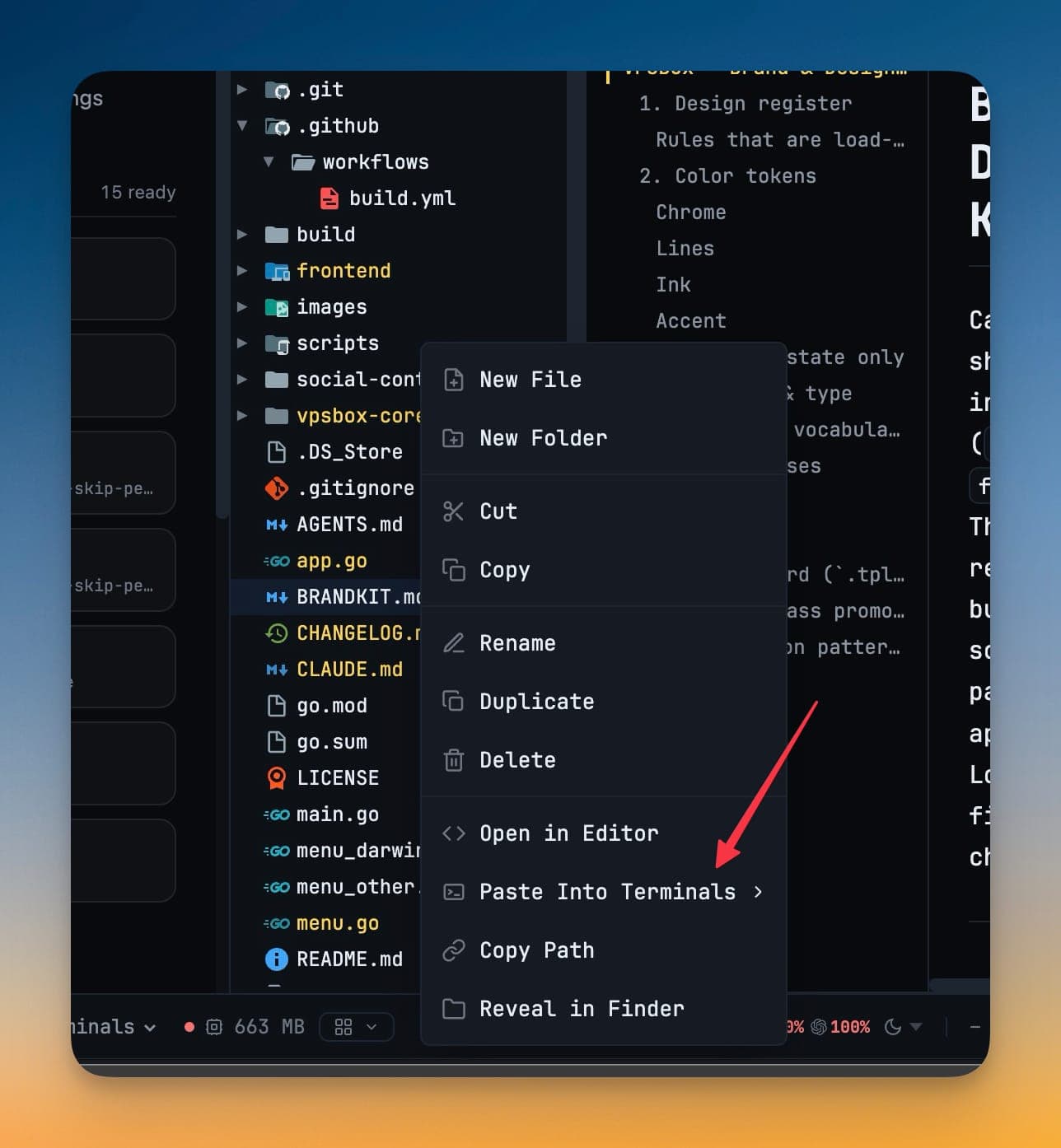
The submenu lists every open terminal grouped under its project, with the project you are in floated to the top. AI terminals show their agent's logo tinted with the terminal's accent colour; plain shells show a terminal glyph — the same read the sidebar gives you.
Picking a target does the follow-through:
- the path drops into that terminal
- 1DevTool switches project if the terminal lives in another one
- a collapsed terminal pane opens
- the terminal takes focus
The path lands where you are already looking, instead of in a clipboard you then have to aim.
The list is snapshotted once per expand on purpose. A terminal appearing mid-menu would shift the row under your cursor — which is exactly how a path gets sent to the wrong agent.
Related
- Layout Modes — Classic and Horizon put the explorer on its own
- Open Files
- Workspace Overview