Updates
Choose how 1DevTool tells you about updates, whether it downloads them automatically, and what happens to your running terminals.
1DevTool updates itself, and it lets you decide how loudly.
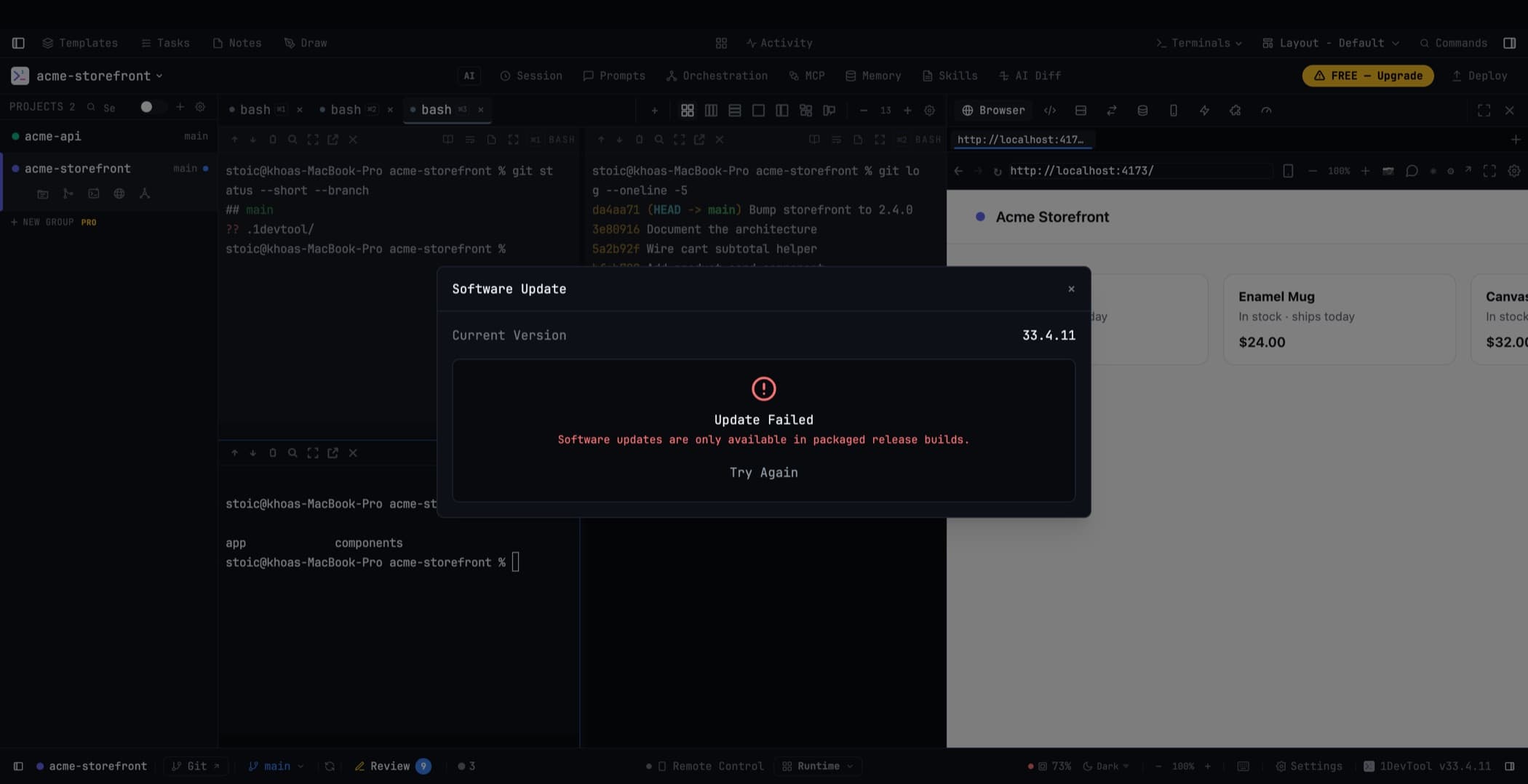
Settings → Updates
- How you are notified — Pill (a quiet indicator in the header), Dialog (a prompt), or Silent (nothing until you look)
- Automatic download — download in the background, or wait until you ask
- Check frequency — how often 1DevTool looks for a new version
Downloading in the background
An update can download while you keep working, with live progress in the header. Interrupted downloads retry automatically after temporary network failures, and progress survives reopening the window.
You install when you are ready. Repeated clicks on install do not create competing installers or relaunch the old build, and Restart & Install completes a single reliable handoff to the new version.
What happens to your terminals
The Restart & Install screen explains exactly what will happen to your running terminals during this particular restart, and includes the experimental terminal keep-alive option right there:
- Whether running terminals will continue through the update, or
- Whether they will be saved and restored afterwards
Changes you make on that screen stay in sync with Settings → Terminal and take effect at the correct restart — you are not editing a setting that applies next time instead of this time.
Plain shells and AI terminals behave differently by design. See Session Persistence.
macOS builds
The Intel and Apple Silicon packages are each produced natively on their own hardware and published together, so a shipped build starts terminals correctly on both architectures. Both are code-signed and notarized.
Checking manually
The update screen has a Check for updates action whenever you want to look, regardless of your frequency setting.
Related
- Free vs Pro — what a licence changes
- Session Persistence — terminals across a restart
- Build & Install troubleshooting