AI Diagnosis & Autopilot
Find out why an agent is stuck, fail a seat over to its backup, and let Autopilot resume an agent that crashed or dropped its connection mid-task.
An agent can stop working in two ways. It can stay alive but stuck: a quota wall, a sign-in prompt or an upsell modal is on screen and your message never lands. Or it can die: the connection drops or the CLI exits halfway through a task. AI Diagnosis handles the first case and Autopilot handles the second. Both live in the same place.
Open the Orchestration Dashboard from the top bar, or run Open Orchestration Dashboard from the Command Palette, then choose Advanced → AI Diagnosis. Tutorials → How-to → Autopilot jumps straight there.
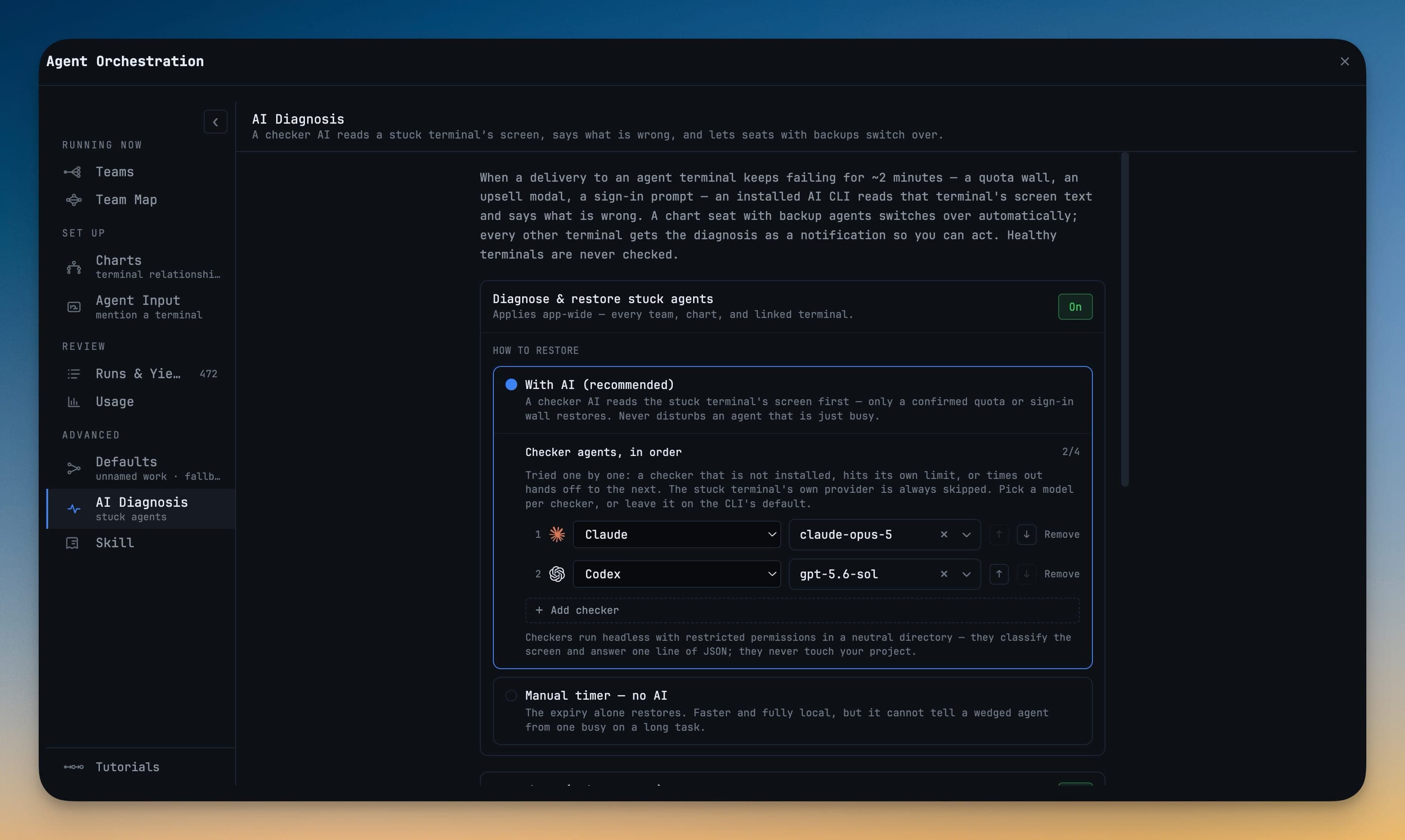
Diagnose & restore stuck agents
When a delivery to an agent terminal keeps failing for about two minutes, an installed AI CLI reads that terminal's screen text and says what is wrong. A delivery is retried every 15 seconds, and the eighth miss triggers the diagnosis. If the terminal sits in a chart seat with backup agents, the seat switches over on its own. Every other terminal gets the diagnosis as a notification so you can act. Healthy terminals are never checked.
Diagnose & restore stuck agents is on by default and applies app-wide, to every team, chart and linked terminal. Under How to restore, choose:
- With AI (recommended): a checker AI reads the stuck terminal's screen first, and only a confirmed quota or sign-in wall triggers a restore. It never disturbs an agent that is just busy.
- Manual timer — no AI: the expiry alone restores. This is faster and fully local, but it can't tell a wedged agent from one busy on a long task.
Checker agents, in order
Checkers are tried one by one. If a checker isn't installed, hits its own limit or times out, the next one takes over. The stuck terminal's own provider is always skipped, so an agent never grades itself. Claude, Codex, Gemini, OpenCode, Qwen, Kimi, Grok and Hermes can all be checkers, up to four at a time. Use + Add checker, the arrows to reorder, and Remove to shape the list. If you pick none, the first installed CLI in that order is used.
Each checker has its own model (since v1.75.0). Open the dropdown beside the agent to choose one, or leave it on Default model to use the CLI's default.
Checkers run headless, with restricted permissions and in a neutral directory. They classify the screen and answer with one line of JSON, and they never touch your project. Screen text is only sent to a checker after you have given the one-time screen-reading consent.
Autopilot (failed tasks)
Autopilot restarts an agent that died or dropped its connection mid-task. It resumes the agent's session or switches the task to the seat's backup. It never answers questions and never types into a picker. It is off by default. Switch the Autopilot (failed tasks) card to On. Turning it on also grants the screen-reading consent that AI Diagnosis uses.
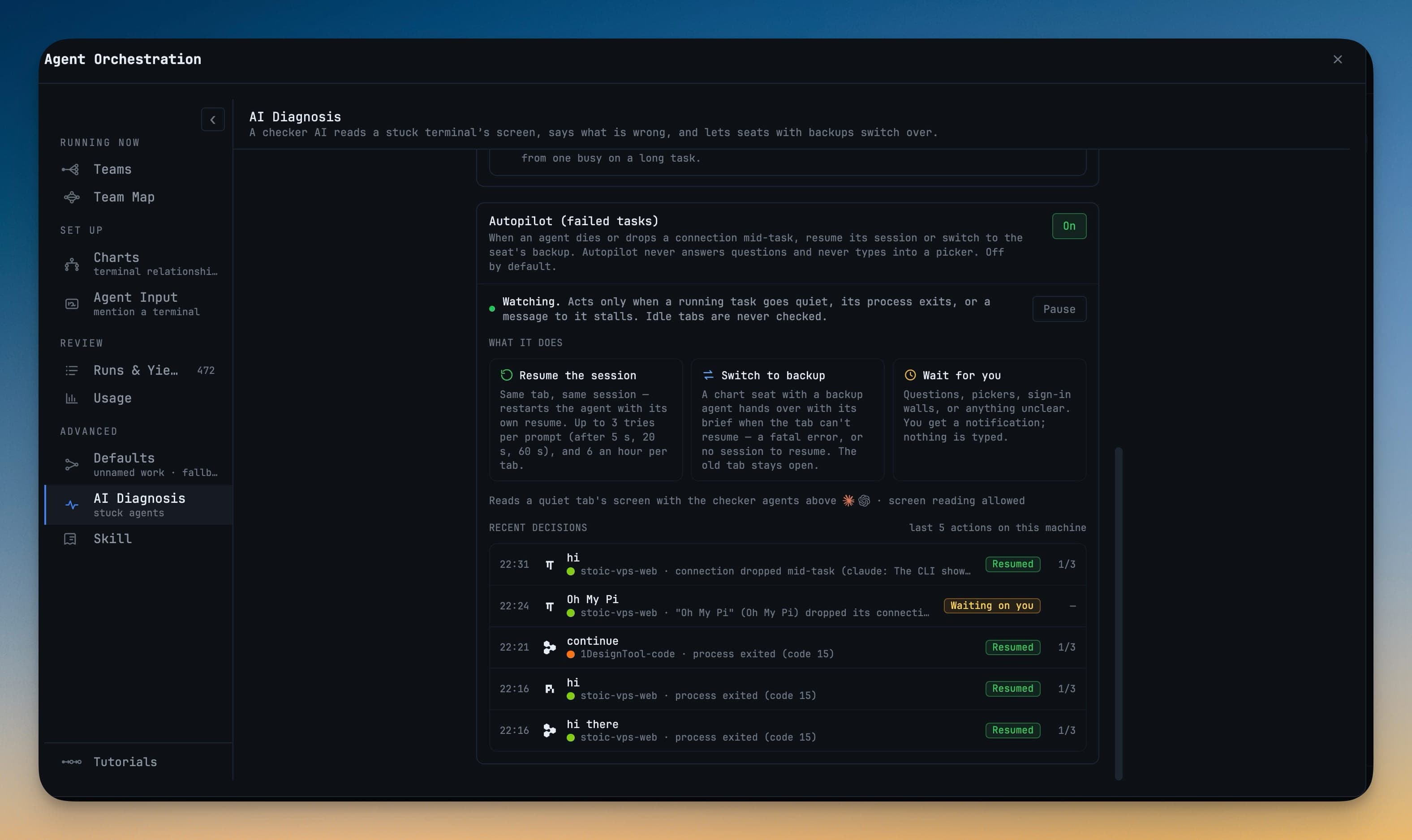
Once it is on, the card reads Watching. Acts only when a running task goes quiet, its process exits, or a message to it stalls. Idle tabs are never checked. Press How it works for an animated walkthrough.
When it acts
Autopilot only looks at terminals that are working on a prompt you sent. Three things set it off:
| Trigger | What counts |
|---|---|
| The process exits | The CLI exits with an error while a prompt is still unfinished. Quitting on purpose with /exit or Ctrl-D exits cleanly and is left alone. |
| The task goes quiet | A running task stops producing output, and a checker reads the screen to confirm it is really stuck. |
| A message stalls | A delivery keeps failing and AI Diagnosis reports a dropped connection. |
What it does
- Continue in place. Since v1.76.1, when a Devin agent's connection drops but its process is still running and its own error asks for a message to go on, Autopilot's first move is to send that message where it is — nothing is stopped and nothing is respawned. Restarting such a process only stopped a working CLI and raced its session lock; in the field it produced 40 Devin restarts in four days against 6 for Claude. A task that stalls again after an in-place continue is restarted as normal.
- Resume the session. Autopilot restarts the agent in the same terminal with that CLI's own resume command, so the same session and transcript come back. This works for Claude Code, Codex, Gemini, Cursor, OpenCode, Grok, Kimi, Qwen, Amp, Cline, Hermes, Antigravity and Qoder. Autopilot then confirms the replacement process is actually live before moving on — an exit notice from the old process arriving late can no longer quietly remove the new one and leave an agent running with no output.
- Ask it to continue. With After a resume, ask the agent to continue on (the default), the resumed agent gets one instruction: to continue where it left off, not to redo completed steps, and to check the result of an interrupted step before repeating it.
- Switch to backup. If the tab can't resume, because of a fatal error or because there is no session to resume, a chart seat with a backup agent hands the task over with its brief. The old tab stays open.
- Wait for you. If a question, a picker, a half-typed draft or a sign-in wall is on screen, or anything else is unclear, nothing is typed. Questions, pickers and drafts are simply left alone. Sign-in walls and unclear screens send you a notification.
Retry limits
Autopilot waits 5 seconds before the first restart. If the same prompt fails again, it waits 20 seconds before the second restart and 60 seconds before the third. After that it stops and pages you with an Activity card that reads Stopped retrying "…" after 3 resumes; waiting on you.
Attempts are counted per incident — per failing task, not per delivery. Autopilot's own "continue where you left off" follow-up carries the incident forward with its attempt count intact, so a stuck task can no longer be stopped and resumed over and over because Autopilot kept restarting its own clock (before v1.76.1 one tab could go through four cycles in seven minutes). An in-place continue is an attempt of the same incident too. Only a new prompt from you starts a fresh incident and resets the count.
On top of that, one terminal is continued or resumed at most 6 times in an hour. Past that, Autopilot waits and tells you so: "Agent name" has been continued or resumed 6 times this hour; Autopilot is waiting on you.
Recent decisions
Recent decisions lists the last 5 actions on this machine. Each row shows the time, the prompt, the project and the reason, with a badge: Resumed, Switched to backup, Couldn't resume, Continued, Stopped retrying or Waiting on you. Activity cards carry an Autopilot chip. The full ledger is append-only and written to ~/.1devtool/orchestration/autopilot-ledger.jsonl.
Pause or off
- Pause stops Autopilot from resuming or switching anything until you unpause. Backup switching from Diagnose & restore stuck agents still runs.
- Off stops Autopilot and clears any pause.
To turn Autopilot off for a single launch without changing the setting, start 1DevTool with ONEDEVTOOL_AUTOPILOT=off. The card then reads Off for this launch.
Related
- Orchestration Dashboard
- Build a Team, where backup agents are set per seat
- Resume Sessions
- Mission Control