Browser Profiles
Give any browser tab its own login — separate cookies, storage, and history — so two accounts at the same site work side by side.
A normal browser gives you a single cookie jar, so being signed in twice to the same website means an incognito window, a second browser, or logging out of the tab you were just using. Browser profiles remove that limit inside 1DevTool: each profile is a self-contained login, and any tab can point at any profile.
What a profile is
A profile keeps its own cookies, storage, and history, completely separate from the rest of the app. That means you can be signed in to the same site as two different accounts at once — one per tab — with neither one touching the other.
Two things always exist:
- Shared session — a single cookie jar shared by every tab that hasn't been given its own profile. This is where new tabs start until you choose otherwise.
- Your profiles — the separate logins you create, each with a name and a color.
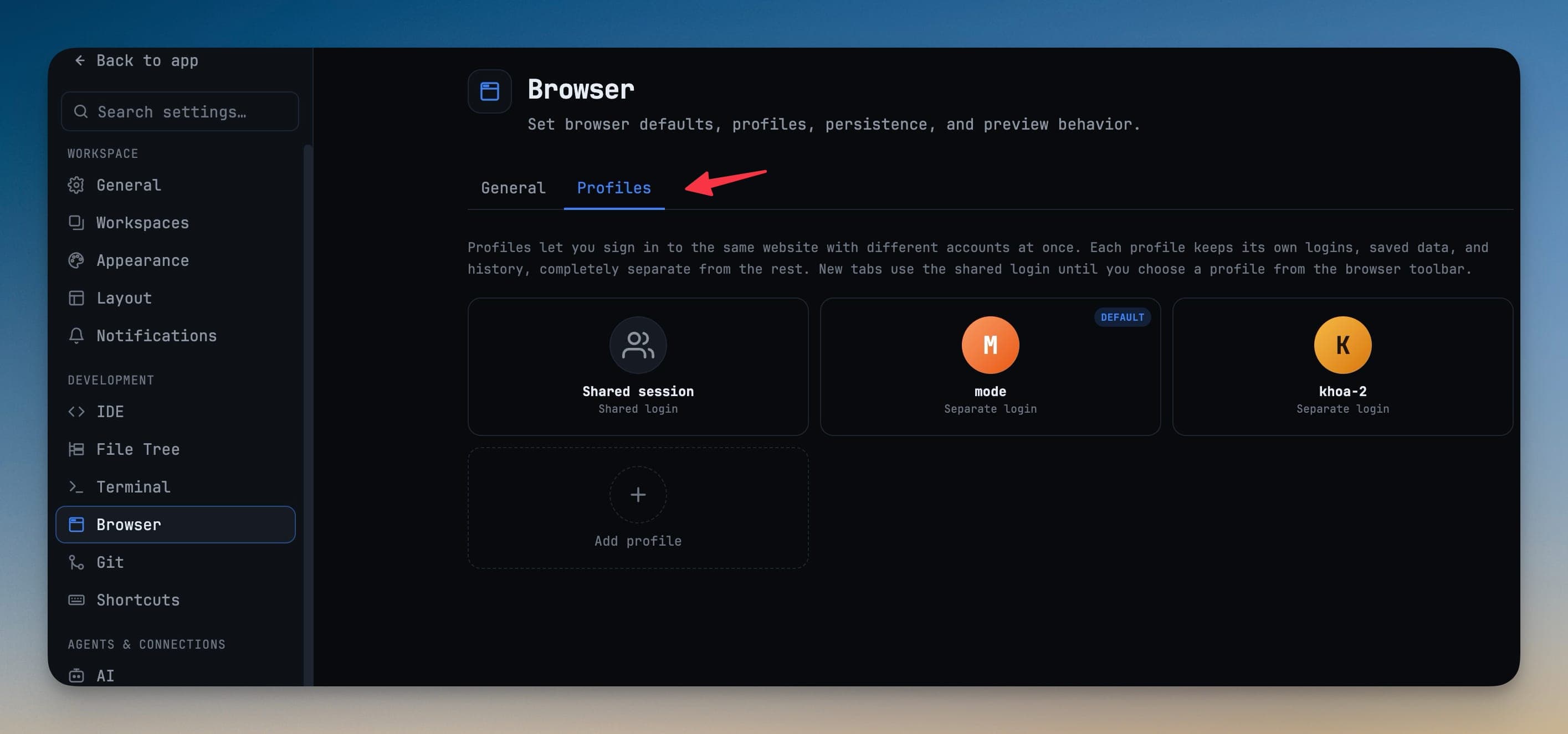
Create and manage profiles
Open Settings → Browser → Profiles:
- Press Add profile to create a new login. Give it a name so you can tell it apart in the picker.
- Mark one profile as the default for new tabs, or leave new tabs on the Shared session.
- Rename or delete a profile at any time. Deleting a profile removes its stored data.
Switch a tab's login from the toolbar
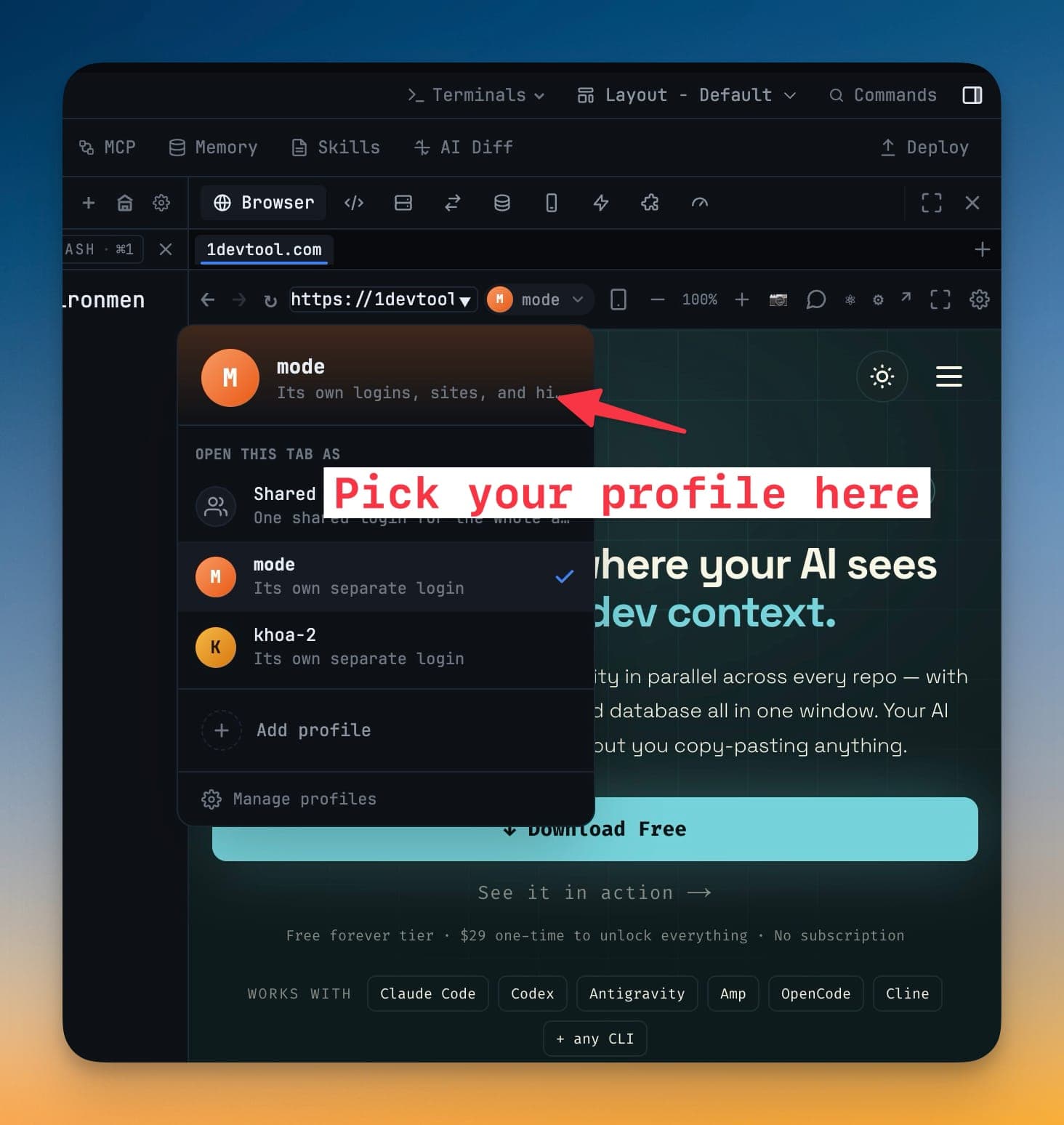
Every browser tab carries a profile picker in its toolbar. Open it and choose Open this tab as:
- Shared — the app-wide session.
- Any profile you've created — the tab reloads on that profile's cookie jar.
The tab beside it keeps whatever login it already had, so switching one tab never signs out another.
Agents inherit the profile
A tab handed to browser automation uses the same signed-in session you see. When you ask an AI agent to drive a page — click through a checkout, fill a form, read a dashboard — it acts as the account in that tab, not some other login that happened to be active. Pick the profile on the tab first, and that is the identity the agent works as. See Let Agents Drive the Browser for how agent automation targets the Browser panel.
Tell sites how the browser should look
Some login and checkout pages are strict about non-standard browsers. Each profile lets you choose how it presents itself:
- Look like Chrome (recommended) — so sign-ins, OAuth, and payment pages behave the way they do in an ordinary browser.
- 1DevTool's native identity — for the occasional page that specifically needs it.
Browse and clear a profile's history
Each profile remembers where it has been. From its history you can remove individual entries, or wipe the profile's data entirely when you're done with it — without affecting any other profile.
When to reach for profiles
- Running client work beside your own accounts, without incognito juggling.
- Testing signed-in against signed-out flows at the same time.
- Pointing browser-driving agents at a page as a specific, chosen account.