Prompt History
Reopen and reuse a prompt you already sent — from the top bar, or from inside the Agent Input composer, where Use inserts it at your caret without overwriting the draft.
Every prompt you send is kept, so a good one is never a thing you have to remember how you phrased.
Two ways in
- From the top bar — Prompts opens the full Prompt History dialog. Rows offer Copy.
- From the composer — a history button on the Agent Input toolbar opens the same dialog above your draft. Rows offer Use.
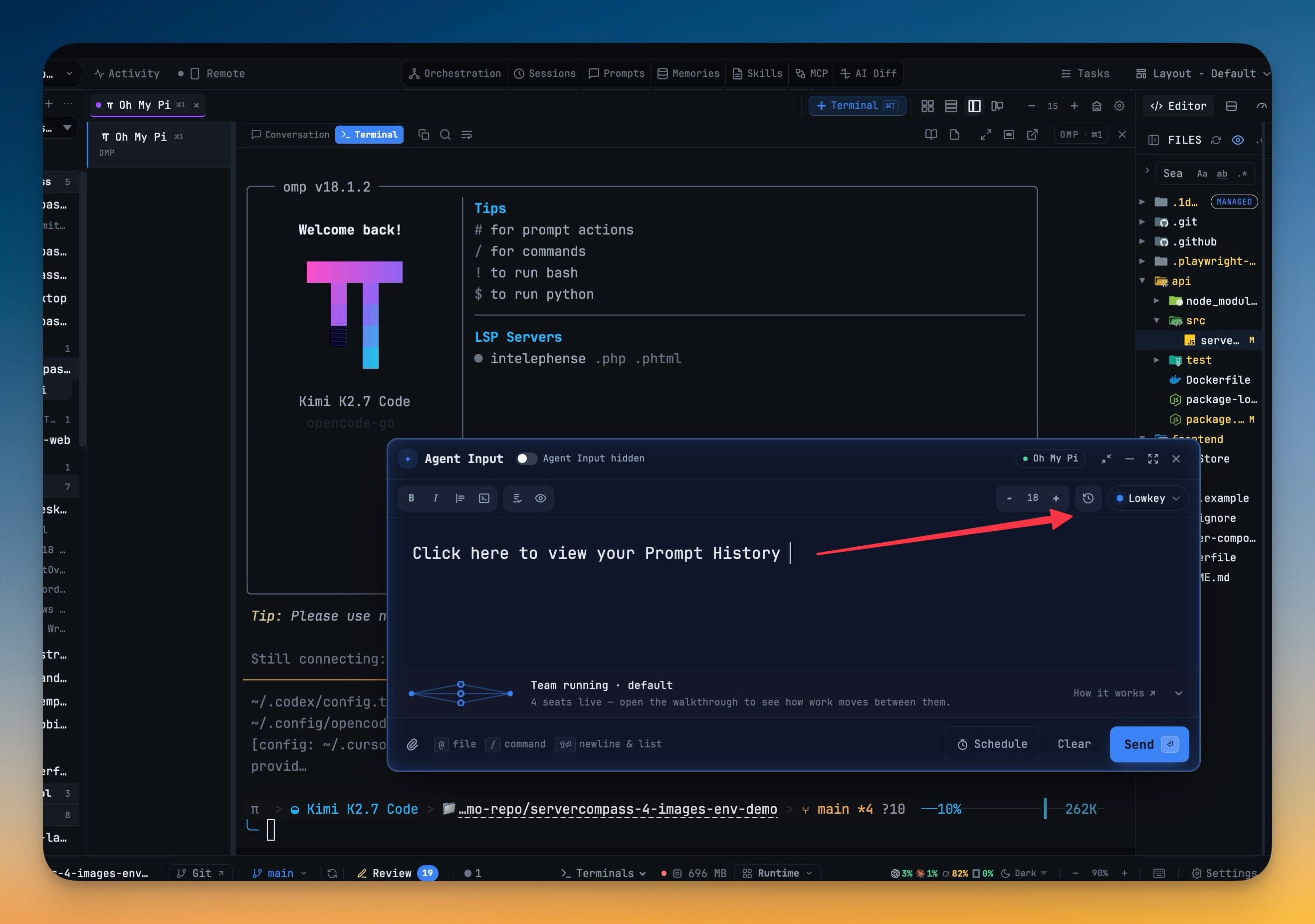
The composer route works when the composer is expanded or detached as well as inline.
What Use does to your draft
Use drops the past prompt in at the caret:
- If you had text selected, it replaces the selection.
- If it lands next to text you have already written, it is separated by a blank line.
- Your unsent draft is never overwritten.
That is deliberate. The common case is borrowing a prompt into something you are still composing, and a silent overwrite of unsent work is the one mistake you cannot undo your way out of.
The dialog closes itself once you pick a prompt, and your cursor is left at the end of what was inserted.
Leaving without touching anything
Escape closes the dialog and leaves the composer exactly as it was.
Notes
Prompt History also carries a Notes tab for sticky notes, and can exclude sensitive data when you export.