Settings Overview: Groups and Search
How the Settings window is organised into five groups, how to find any setting, page or shortcut by typing, and how saving works.
Settings has 21 pages, and many of them have sub-tabs of their own. Since v1.85.1 you rarely need to know where a setting lives: type what it does into the search box and Settings takes you to it. When you'd rather browse, the pages are sorted into five groups by what you are trying to do.
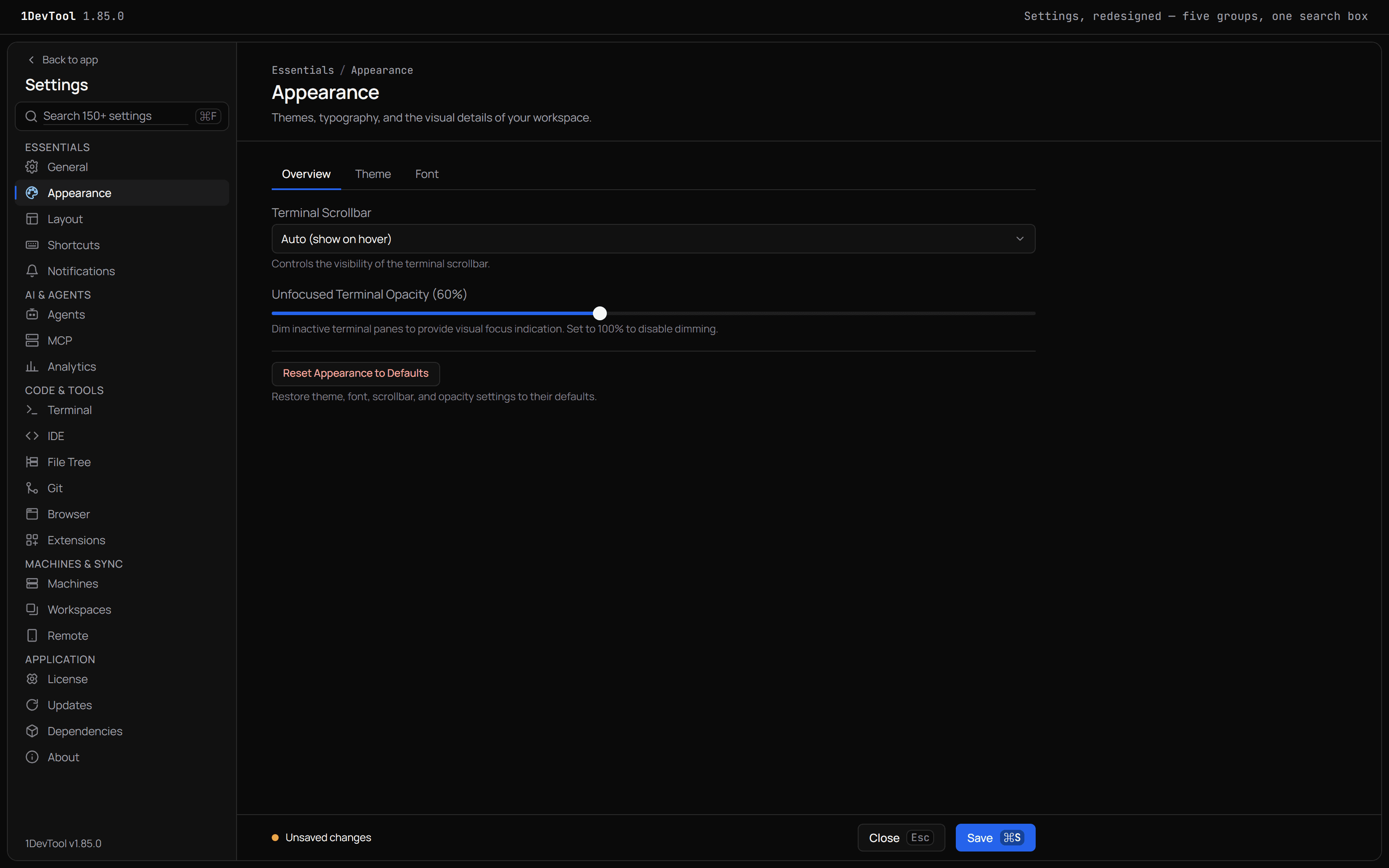
Open Settings
- Press
Cmd+,/Ctrl+,, or click Settings in the status bar. - On macOS, the app menu has Settings... followed by a Settings Sections submenu. It starts with All Settings... and then lists every page in the same order as the sidebar.
- On every platform, the same submenu is under Tools → Settings.
Back to app at the top of the sidebar closes Settings.
The five groups
| Group | Pages |
|---|---|
| Essentials | General, Appearance, Layout, Shortcuts, Notifications |
| AI & Agents | Agents, MCP, Analytics |
| Code & Tools | Terminal, IDE, File Tree, Git, Browser, Extensions |
| Machines & Sync | Machines, Workspaces, Remote |
| Application | License, Updates, Dependencies, About |
If you knew the old order, three pages moved: Shortcuts is now under Essentials, Workspaces under Machines & Sync, and Extensions under Code & Tools. Their contents did not change.
Search every setting
Press Cmd+F / Ctrl+F, or / when you are not typing in a field, to put the cursor in the search box. Search covers every setting, every page and every keyboard shortcut.
As you type, the right side becomes a results page headed Results for "…", with a count such as 6 settings and 1 page in 3 sections. Results are grouped by page. Each group shows the page's icon, its name and the number of hits, and each row shows:
- the setting's name, with the text you typed marked
- a Page or Shortcut tag when the result is a whole page or a keyboard shortcut
- a one-line description
- on the right, the path that leads to it, such as Agents › Notifications. A page result shows its group instead.
The sidebar follows along. A page with matches gets a count badge, and pages without any fade back.
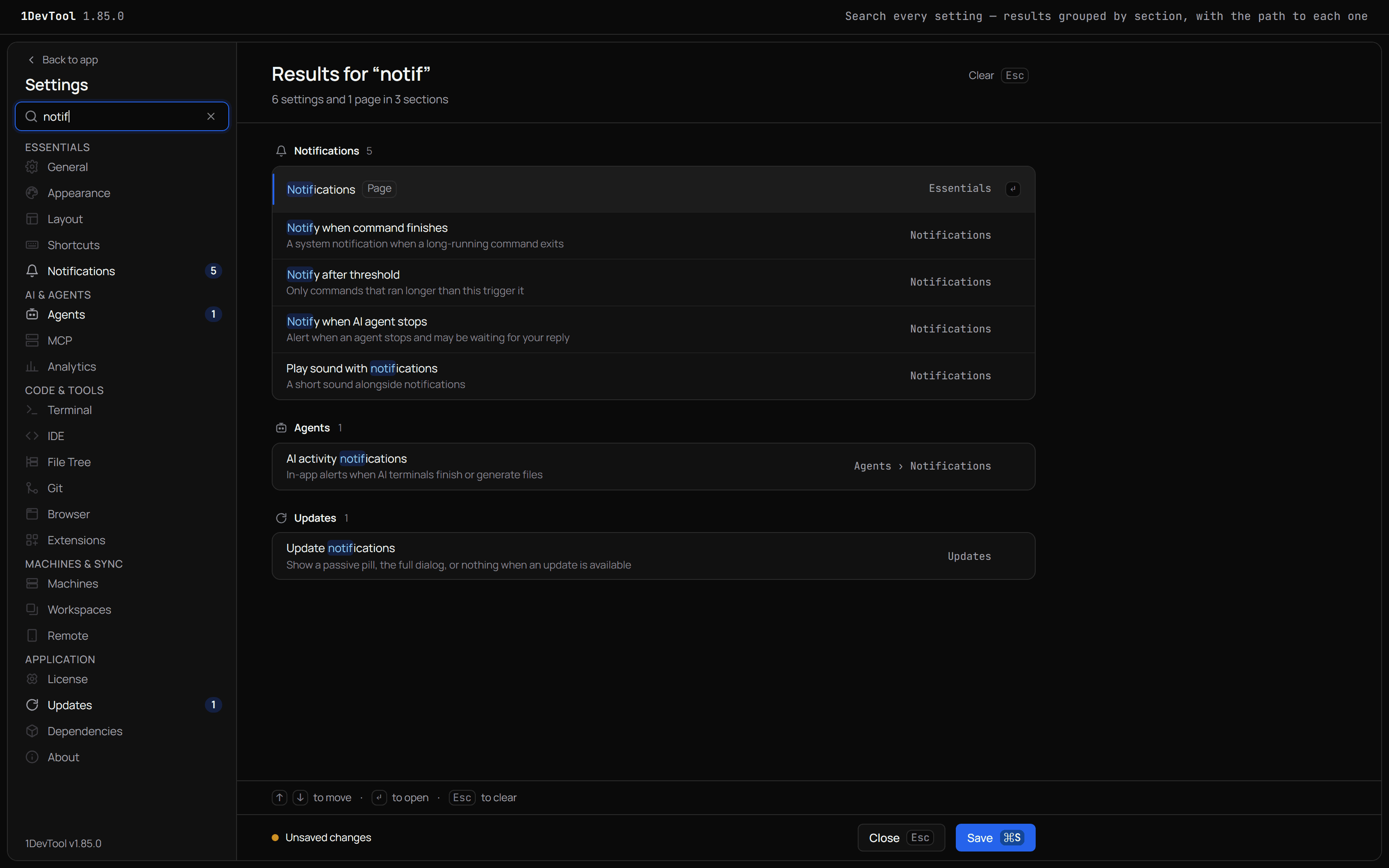
Open a result
| Key | What it does |
|---|---|
↑ / ↓ | Move through the results |
↵ | Open the selected result |
Esc | Clear the search (Settings stays open) |
Opening a setting switches to its page and sub-tab, scrolls it to the middle of the window and flashes it briefly so you can find it on the page. If your system is set to reduce motion, the setting gets a steady outline instead of a flash. Opening a page result just switches to that page.
Accounts, quota and spend live in Accounts & Quota, not in Settings. Searching for them still works: those rows say Opens Accounts & Quota ↗, and picking one closes Settings and opens that panel on the matching tab.
When nothing matches
You see No settings match "…" and Try a broader word, or browse: with a few starting points: Theme, Font size, Agent permissions, Notifications, Git accounts and Keyboard shortcuts.
Cmd+F / Ctrl+F does not take over when your cursor is inside a code editor or a terminal that sits on a Settings page, so search inside those keeps working as usual.
Saving
The bar at the bottom of Settings shows where you stand:
- Unsaved changes appears only when something really differs from what is saved. If you change a value and change it back, the warning goes away.
- All changes saved means there is nothing to save.
Press Cmd+S / Ctrl+S or click Save. The shortcut works even while you are typing in a field. The button shows Saving… and then Saved, and Settings stays open so you can keep going. Close, or Esc when you are not searching, leaves Settings.