Screenshots
Capture any app with a global shortcut, annotate it, and send it straight into one or several agent terminals — or a new one.
Your agent cannot see the screen you are looking at. Screenshots closes that gap: capture any app on your computer, mark up what matters, and send the image straight into a running agent's prompt — no file to save, find, or drag.
Turn it on
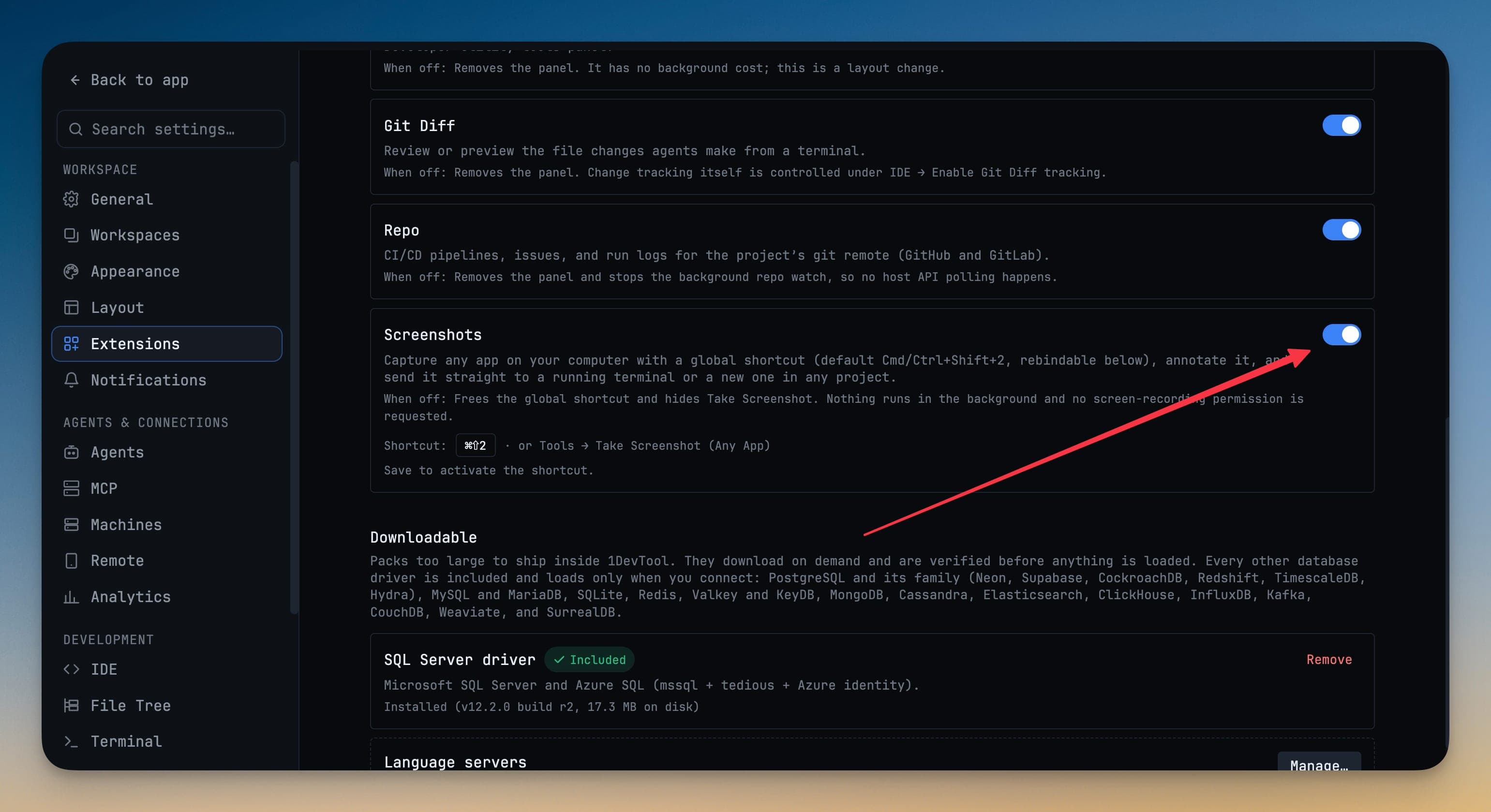
Screenshots is an extension, and it is off by default. Open Settings → Extensions and switch on Screenshots.
While it is off, nothing runs: no global shortcut is registered, Take Screenshot (Any App) is hidden from the Tools menu, and 1DevTool never asks for screen-recording permission. See Extensions for how the other switches work.
Change the shortcut
The default is Cmd+Shift+2 on macOS and Ctrl+Shift+2 on Windows and Linux — chosen because it is not one of macOS's own screenshot chords. To change it, click the shortcut under the Screenshots switch and press the chord you want.
- The chord needs a real modifier (Cmd, Ctrl, Alt or Option). A bare letter, or Shift plus a letter, would steal typing from every app, so it is refused.
- An invalid value falls back to the default rather than leaving you without a shortcut.
Capture
Press the shortcut from any app, or choose Tools → Take Screenshot (Any App).
Every display freezes behind a selection overlay, so a tooltip or a scrolling log does not change while you aim.
| Action | What it does |
|---|---|
| Drag | Capture that region |
| Enter | Capture the full screen |
| Esc | Cancel — nothing is captured or written |
It works across multiple displays; each screen gets its own overlay.
Annotate
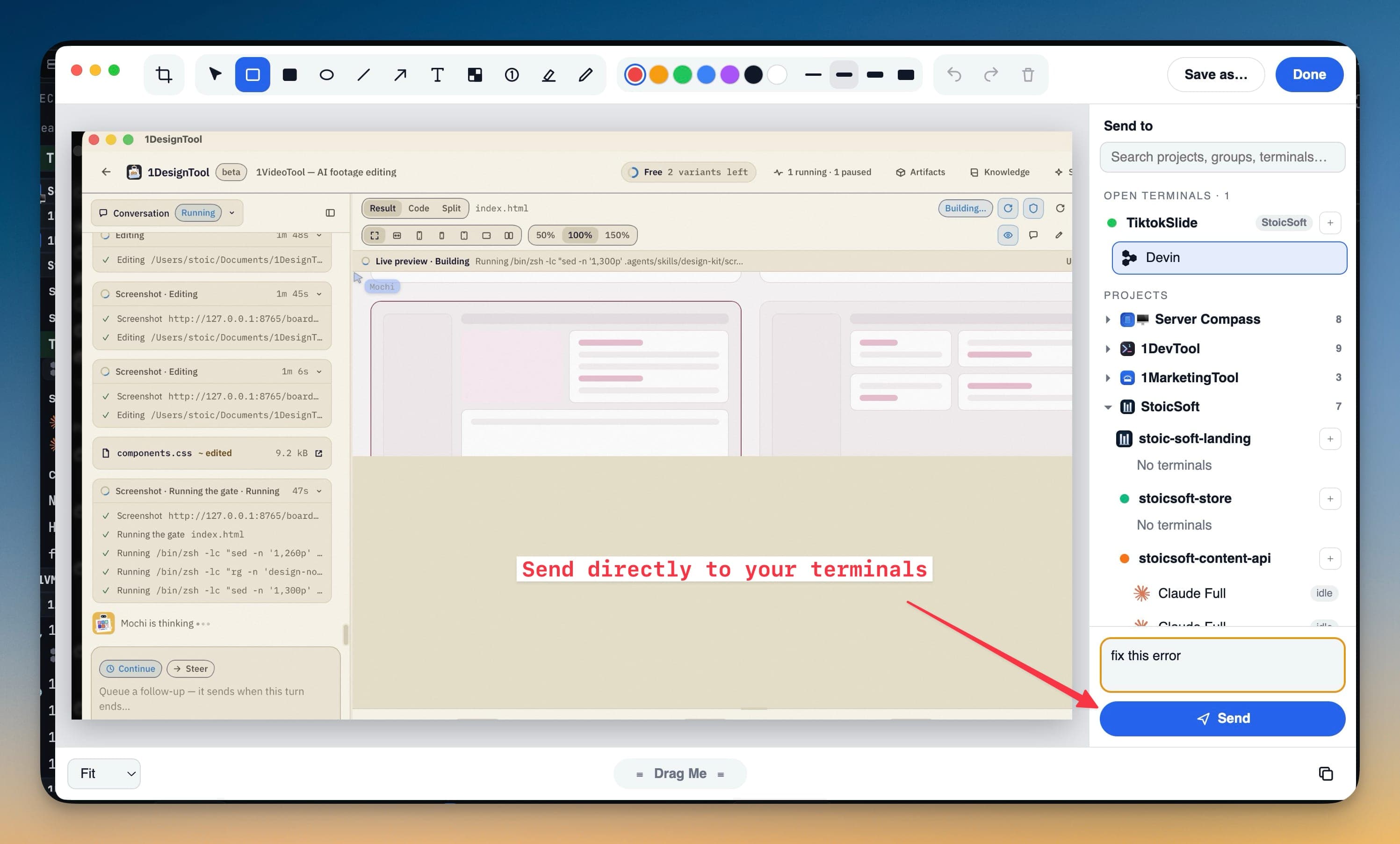
The capture opens in a floating editor. The toolbar, left to right:
- Crop
- Select — move or delete a shape you already drew
- Rectangle, filled rectangle, ellipse, line, arrow
- Text
- Pixelate — hide API keys, emails or customer data before the image leaves your machine
- Numbered badge — mark steps or several problems, then refer to them by number in your message
- Highlighter and pen
Pick a colour and stroke width, undo and redo, and use the zoom control in the bottom-left corner for pixel-level work.
When the image is not for an agent:
- Save as… writes it to a file
- Done copies it to the clipboard and closes the editor
- Drag Me (bottom centre) lets you drop the image straight into another app
Send to a terminal
The Send to panel on the right lists your terminals:
- Open terminals — projects with a live session are pinned at the top, each tagged with its group
- Projects — every other project, in the same groups and order as your sidebar
Every row shows the agent's logo and the project's avatar. The search box matches project, group, terminal name or agent type — type codex to see every Codex terminal.
Type an optional message (for example fix this error) and press Send.
- Agent terminals receive your message with the image attached after it. With no message, the agent is asked to review the attached screenshot.
- A terminal that is not running is started first, and the prompt waits until the agent is ready for it.
- A plain shell cannot read an image, so it gets the file's quoted path typed at the prompt — without pressing Enter — ready for whatever command you want to run on it.
Send to several agents at once
Tick more than one terminal and the same screenshot is delivered to each. Useful for a second opinion, or when the frontend and backend agents both need to see the same error.
Start a new terminal for it
Click the + beside any project. The full Add Terminal dialog opens — every agent, shell, machine, worktree and team — and the screenshot goes into whatever terminal you create. Close the dialog without creating one and that target is dropped. See Add a terminal.
Screenshots vs. the in-app annotator
The browser panel and Agent Input already had a screenshot annotator for images inside 1DevTool. Those keep working. The Screenshots extension is for everything outside the app — any window, any display — and adds the Send to list.