Mobile panel
Mirror an iOS Simulator, an Android emulator or a real Android phone over adb inside 1DevTool, drive it from your desktop, send its screen to an agent, and Build & Run your app onto it.
The Mobile panel puts a device next to your terminals. It mirrors an iOS Simulator, an Android emulator, or (since v1.83.0) a real Android phone connected over adb. You can tap, swipe and type on it, send its screen to an AI agent, and build your app straight onto it.
Open it from the Mobile tab in the sidebar and choose iOS or Android at the top right. If you don't see the tab, it is switched off in Extensions as Mobile emulator.
What each platform needs
Click Guide in the panel for the same checklist inside the app.
| Platform | Required | Optional |
|---|---|---|
| iOS Simulator | macOS with Xcode and Simulator; xcrun simctl must work | WebDriverAgent (default host http://127.0.0.1:8100) for the full feature set, and idb + idb_companion for faster input |
| Android emulator | Android SDK Emulator and Platform-Tools, plus at least one AVD | — |
| Android phone | Android SDK Platform-Tools (adb) only | The emulator is not needed |
1DevTool finds adb and emulator through ANDROID_HOME / ANDROID_SDK_ROOT, or through the Android Studio default: %LOCALAPPDATA%\Android\Sdk on Windows, ~/Library/Android/sdk on macOS and ~/Android/Sdk on Linux.
If only half of the Android SDK is there, the panel says so instead of hiding Android:
adb found, emulator missing: only physical devices over adb are available.emulator found, adb missing: install Android SDK Platform-Tools; streaming and input need adb.
To check everything at once from a terminal:
xcrun simctl list devices --json
emulator -list-avds
adb devices -l
which idb && which idb_companion
Connect a real Android phone
Over USB
- On the phone, open Settings > About phone and tap Build number seven times. Then turn on Developer options > USB debugging.
- Plug the phone in, unlock it and accept Allow USB debugging.
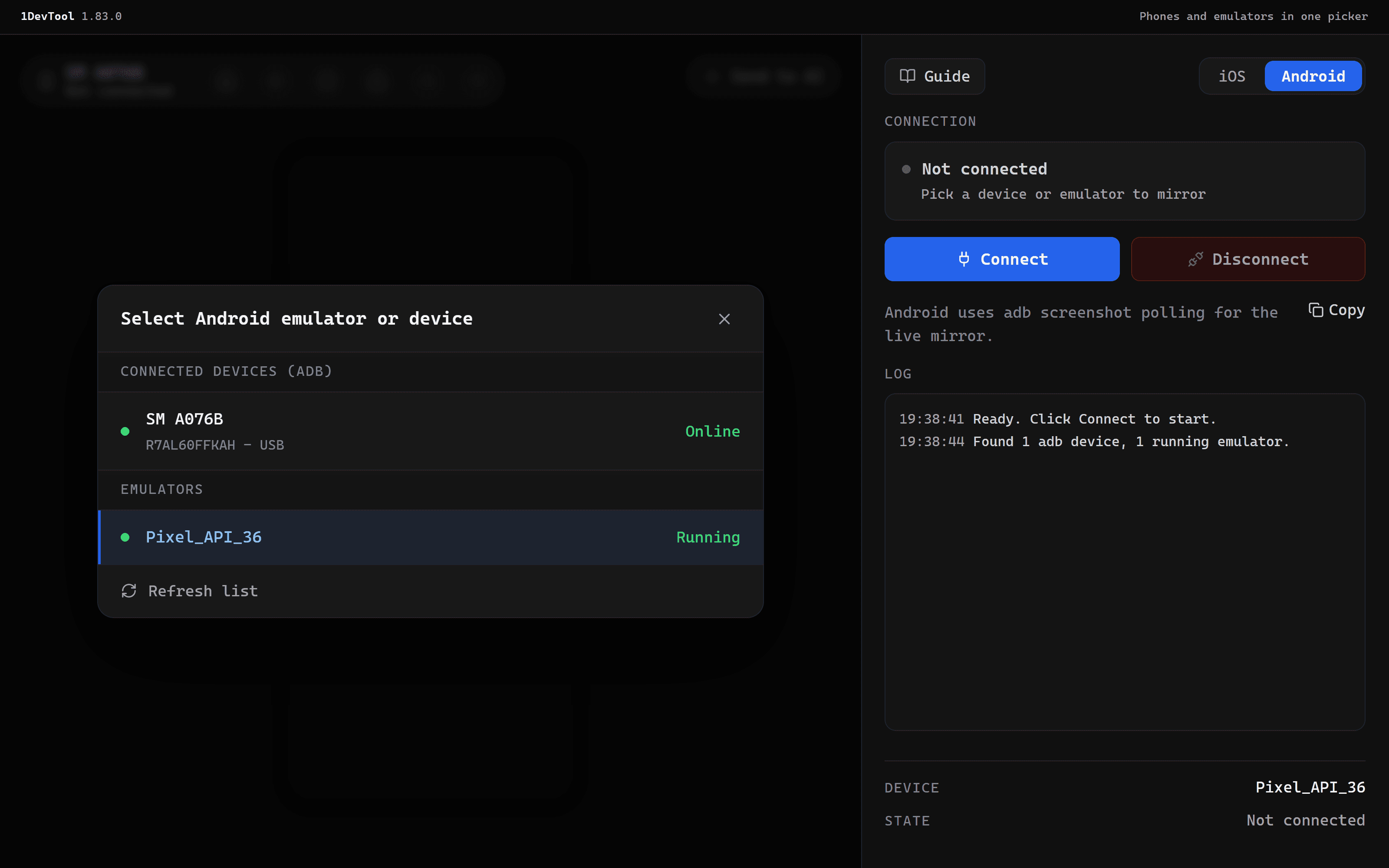
adb devicesmust showdevice, notunauthorizedoroffline. On Windows, some phones (Samsung, for example) need the maker's USB driver. - In the Mobile panel, switch to Android and open the device picker. The phone is listed under Connected devices (adb) by its model name, with its serial and USB.
- Pick it and click Connect.
Over Wi-Fi (Android 11 and later)
- On the phone, open Developer options > Wireless debugging and choose Pair device with pairing code.
- In a terminal, run
adb pair <ip>:<pair-port>with the code the phone shows, thenadb connect <ip>:<port>. - The phone appears under Connected devices (adb) marked Wi-Fi.
Phone states
The picker shows each phone's state on the right:
| State | Meaning | What to do |
|---|---|---|
| Online (green) | adb can talk to the phone | Click Connect |
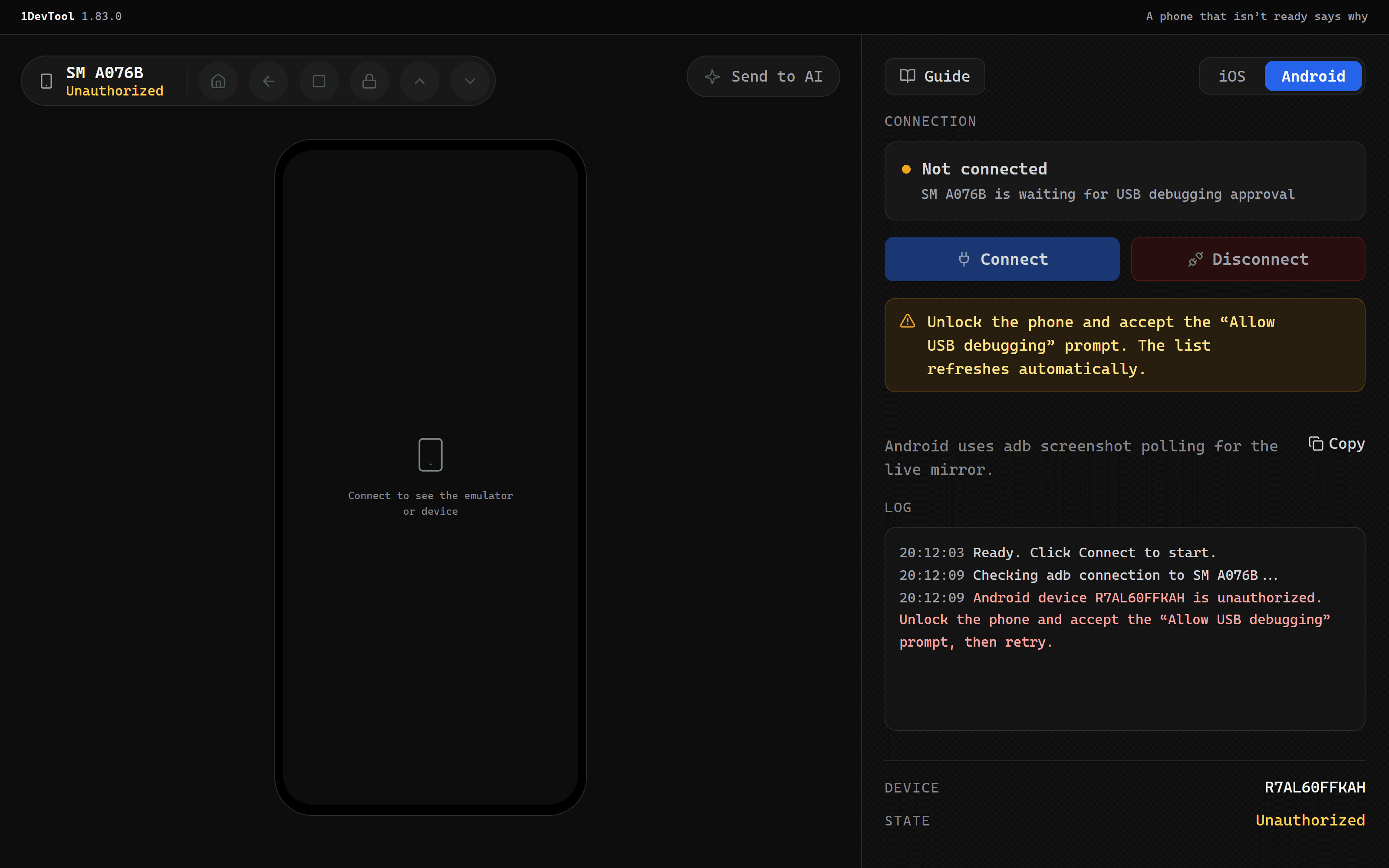
| Unauthorized (amber) | The phone hasn't trusted this computer yet | Unlock the phone and accept the "Allow USB debugging" prompt |
| Offline (amber) | The connection dropped | Reconnect the cable (or Wi-Fi), or run adb reconnect |
While a phone is Unauthorized or Offline, Connect stays greyed out and the panel shows the fix. The list refreshes every five seconds while the picker is open or the selected phone isn't ready, so the state turns green on its own once you tap Allow. A phone you unplugged is reported as not connected. The panel never switches you over to a different device.
Drive the device
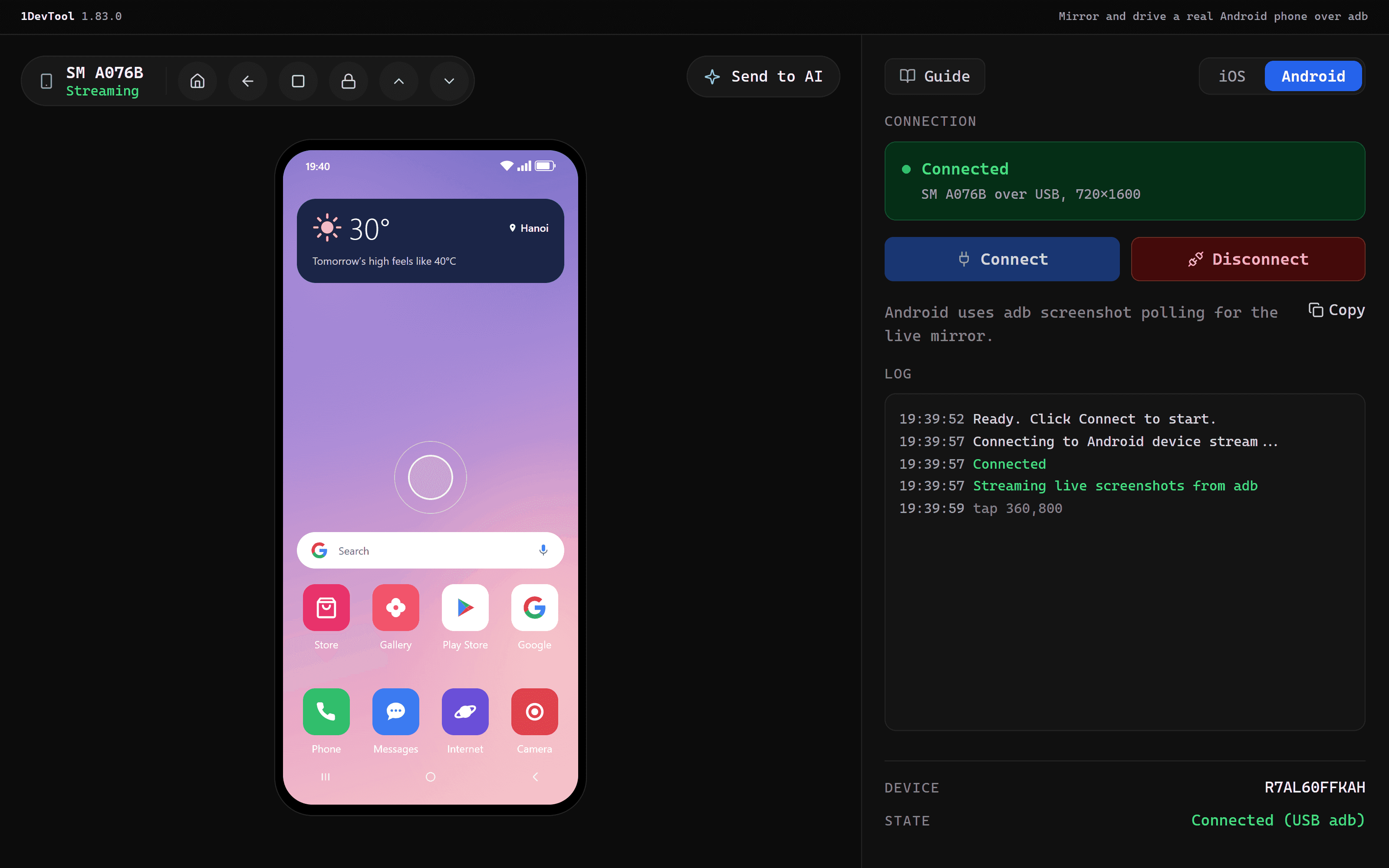
Once connected, the device mirrors in the panel and the state reads Connected. For a phone, the sidebar label changes from Emulator to Device and the state shows Connected (USB adb) or Connected (Wi-Fi adb).
- Click to tap and drag to swipe.
- Type on your keyboard while the panel has focus to send text.
- The Android toolbar has Home, Back, Overview, Lock, Scroll up, Scroll down and a button to save a screenshot to disk.
- The Log under the connection card records each action, for example
tap 360,800.
Disconnect stops the mirror. For an emulator or simulator, Shutdown emulator (or Shutdown simulator) also turns it off. That button is hidden while a phone is selected, because the panel never powers off a phone.
Send the screen to an agent
Send to AI takes the current screen and opens it in the annotator, so you can mark what's wrong. Then you pick an AI terminal to send it to. The message includes the device context, such as Android physical device - SM A076B (adb serial …, USB), and the recent interaction log. That way the agent knows which device it is looking at.
Build & Run
Build & Run builds your app and launches it on the selected device:
- Android: runs your Gradle debug build, installs it onto the selected emulator or phone by its serial, and launches the activity you set (or the app's launcher activity). An emulator that isn't running is started first. A phone is only checked to be ready. On Windows, Gradle runs through
bash, so Git Bash needs to be on yourPATH. - iOS: builds the Xcode project or scheme you set and runs it on the selected simulator.
Limits
- The Android mirror is a series of
adb exec-out screencapscreenshots, not a video stream. A 720×1600 phone gets about two to three frames a second, and bigger screens get fewer. That's fine for layouts and flows, but not for judging animation. - Input goes through
adb shell input, so you get taps, swipes, text and key presses. Multi-touch, pinch and long-press are not supported. - A secure lock screen, and apps that block screenshots, capture as black. Android blanks them for every capture tool.
- Physical devices are Android only. On iOS the panel mirrors the Simulator.
Related
- Extensions: turn the Mobile panel on or off
- Workspace overview
- Preview your local app